Deck drafting
AI presentation maker: from a brief to a slide-by-slide draft
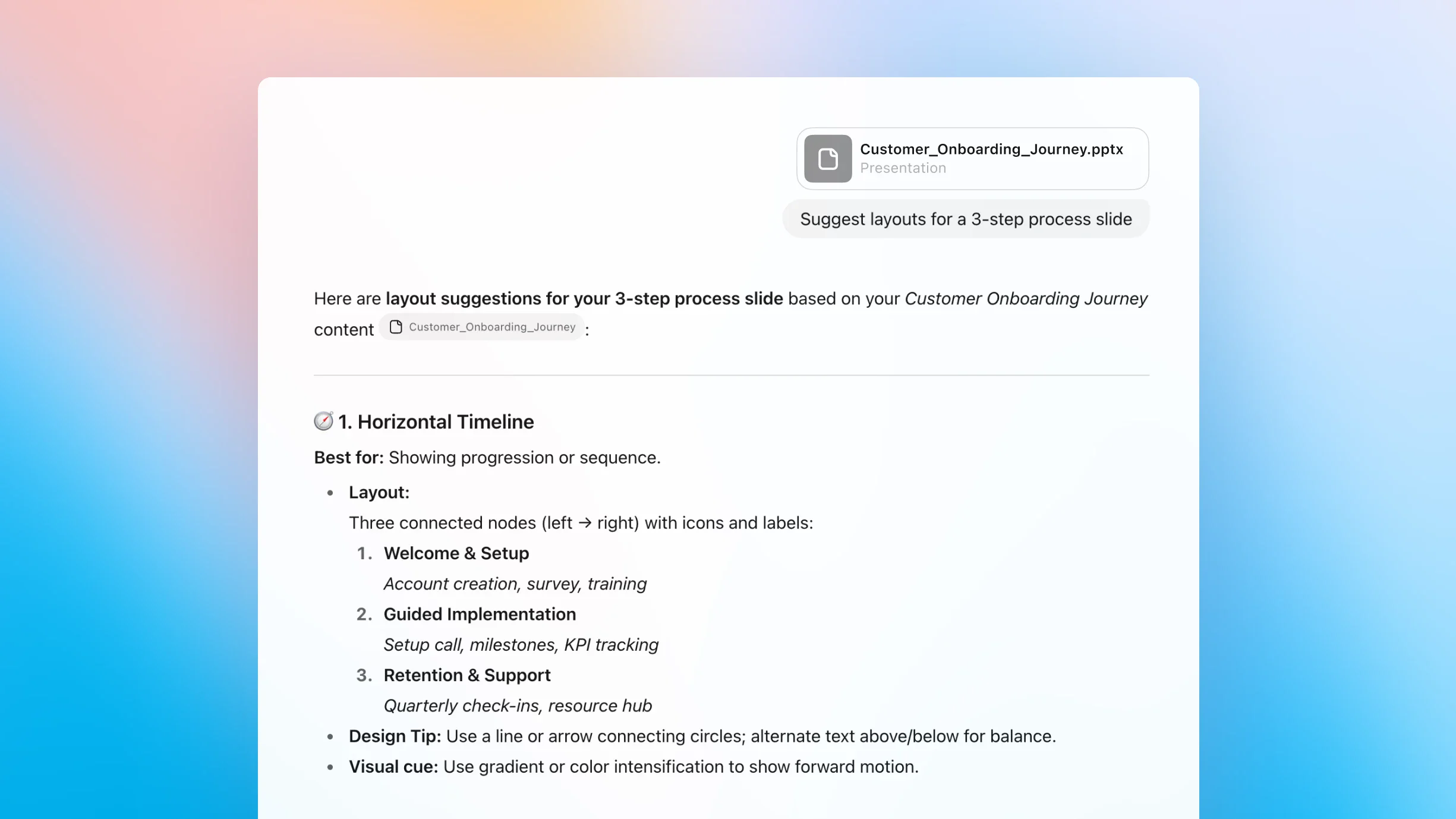
ZeroTwo drafts the outline, the text on each slide, the speaker notes and ideas for charts and visuals. You bring the slides to life in PowerPoint, Google Slides or Keynote. This page shows where the hand-off sits, so you know what you are getting before you start.
- 01
ZeroTwo drafts
Outline, one-line message per slide, slide text, speaker notes, chart and layout suggestions.
- 02
You design
Template, layout, charts, images and branding, in PowerPoint, Google Slides or Keynote.
- 03
You verify
Every number, name and claim, against your own sources, before anyone sees a slide.
Pick your starting point first
What you feed in decides how much of the deck is drafting and how much is cleanup. Three common cases.
- Blank page
Start from a brief
You have a topic, an audience and a time slot, but no material yet. Give the assistant those three things plus any figures you can stand behind, and ask for an outline before any slide text. Approving the order first saves rewriting ten slides later.
- Source document
Start from a report
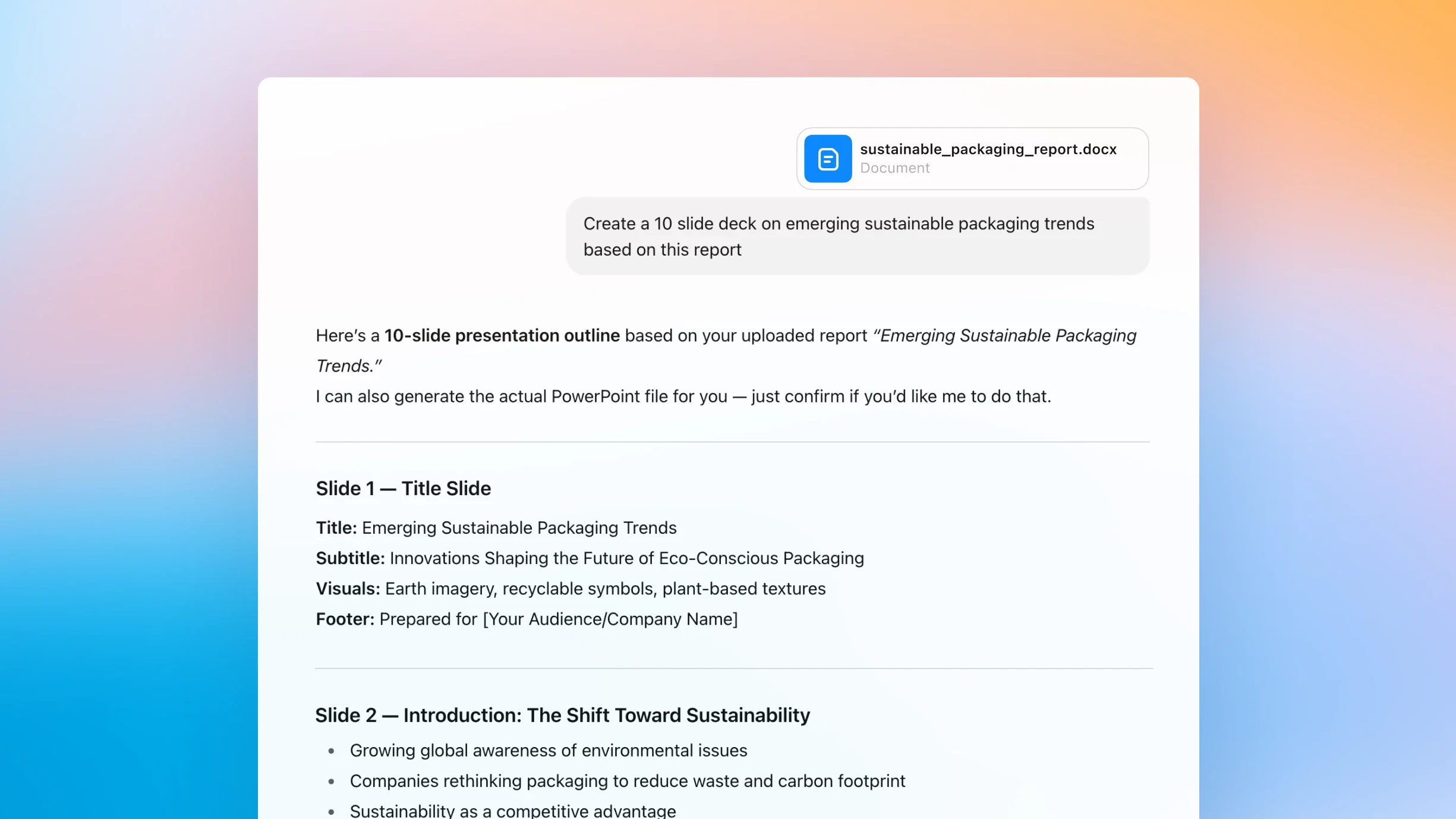
Attach the source and ask for a slide-by-slide outline that names which section each slide draws from. The screenshot above starts from a .docx report. The Free plan allows one file upload per message.
- Existing deck
Start from slides you already have
If the deck exists and you need its gist, its weak spots or a tighter version, you do not need to generate anything new. Summarize first, then decide what to rewrite.
start from an existing presentation with the presentation summarizer.
What ZeroTwo drafts and what you finish
The draft comes back as text in the chat. This page does not promise a styled file, a .pptx or .pdf export, or native chart objects, and it publishes no sample deck. If you need a polished deck, budget time for the design pass.
| Part of the deck | In ZeroTwo | In your slide tool |
|---|---|---|
| Storyline and order | Drafts an outline with one message per slide. Ask for two alternative orders and pick one. | Decide the order and cut anything that does not earn a slide. |
| Slide text | Drafts titles and bullets as plain text, slide by slide. | Paste, trim and fit the text to your layout. |
| Speaker notes | Drafts talking points per slide. Give it your time slot and ask for a time budget. | Paste into the notes pane and rehearse out loud. |
| Charts | Suggests a chart type and the exact table of figures to plot, from numbers you supply. | Build the chart object in your slide tool. This page does not promise native chart objects. |
| Images and visuals | Suggests a visual per slide. Image generation is available on plans that include it; Free is limited. | Place, crop and caption. Check that any image is accurate and cleared for use. |
| Layout, theme, brand | Not part of the workflow described on this page. | Apply your template and brand rules. |
| Facts and figures | Can mark claims it was not given as unverified if you ask it to. It cannot know numbers you did not provide. | Check every figure and source yourself. |
What to ask for: a six-slide outline
A 10-minute quarterly operations update for department heads. Six slides, one decision requested at the end. This is a hand-written illustration of the structure to request. It is not output from a test run and contains no measurements.
The request
Audience: department heads. Time: 10 minutes. Goal: get a decision on option B by Friday. Draft an outline of 6 slides. For each slide give: a title, a one-sentence message, up to 3 bullets, speaker notes under 60 words, the data I need to supply, and one visual suggestion. Use only the facts I give you. Mark anything else as UNVERIFIED and do not invent numbers.
Copy it, change the audience, time and goal, and send it. Asking for “the data I need to supply” turns the outline into a to-do list.
Slide 1: Where we stand
One sentence of status, then the headline numbers.
- You supply
- The three numbers that matter, with their dates.
- Visual idea
- Single large-number layout.
Slide 2: What changed since last quarter
The two or three changes that explain the headline numbers.
- You supply
- Last quarter and this quarter figures for each.
- Visual idea
- Two-series bar chart.
Slide 3: What is blocking us
The blockers, each with an owner.
- You supply
- Blocker list and who owns each one.
- Visual idea
- Three-column table.
Slide 4: Options
Two or three ways forward and what each costs.
- You supply
- Costs and trade-offs you have already confirmed.
- Visual idea
- Side-by-side comparison table.
Slide 5: Recommendation
The option you want chosen, and why.
- You supply
- The decision owner and the date it is needed by.
- Visual idea
- Text slide, one sentence large.
Slide 6: Next steps
Who does what, by when, once the decision is made.
- You supply
- Names and dates.
- Visual idea
- Simple timeline.
Five moves from brief to rehearsal
Approve the outline before you ask for slide text, and keep the verifying for last, when the wording has settled.
Write the brief
Audience, goal, time slot, the one decision or takeaway, and the figures and sources you can stand behind. Everything the assistant is not told, it will guess.
Ask for the outline only
Request titles and one-line messages, nothing more. Reorder, merge or cut slides at this stage, while changes are cheap.
Expand slide by slide
Ask for text, speaker notes, the data each slide needs and a visual suggestion, one slide or a few at a time. Tell it to mark any claim that is not in your brief.
Move it into your slide tool
Paste into PowerPoint, Google Slides or Keynote, apply your template and build the charts from the tables the assistant listed.
Verify, then rehearse
Check every figure and name against its source, read the notes aloud against the clock, and cut what runs over.
What a deck draft costs
Start on the Free plan. Paid plans run on monthly credit allowances rather than unlimited generation, so a long deck with many revisions draws on that allowance. The pricing page lists the exact numbers, and you can compare AI pricing across subscriptions.
Free
$0/mo
- 100 free credits to start
- +20 bonus credits every day you log in
- 1 file upload per message
- Limited model selection
Plus
$14.99/mo
- 1,650 monthly credits
- Unlimited fast models in chat
- Memory unlocked
Pro
$29.99/mo
$26.99/mo billed annually
- 3,500 monthly credits
- Better unlimited chat model selection
Questions about AI-made presentations
Can AI create a full presentation?
It can draft the structure, slide text, speaker notes and visual suggestions in a chat, one slide at a time if you want. What this page does not claim is a finished, styled file: you assemble and design the slides in PowerPoint, Google Slides or Keynote.
Can I export a PowerPoint or PDF directly?
This page does not promise a .pptx or .pdf export and does not publish a sample file. The reliable route is to copy the text into your own slide tool and apply your template there.
Does it build charts and images?
It can recommend a chart type and lay out the table of figures to plot from the numbers you give it, and you build the chart in your slide tool. It can also suggest a visual for each slide. Image generation is available on plans that include it; the Free plan has limited image generations.
Which model should I use?
ZeroTwo offers 60+ models. A practical test is to ask two of them for the same outline and keep the structure that fits your story. The Models page lists what is available.
Is the AI presentation maker free?
The Free plan is $0, with 100 free credits to start and 20 bonus credits every day you log in, 1 file upload per message, limited model selection and limited image generations, and no card is required. Plus is $14.99/month and Pro is $29.99/month ($26.99/month billed annually); paid plans run on monthly credit allowances.
How do I stop it inventing facts in my slides?
Give it the numbers and sources, tell it to mark anything else as unverified, and check every figure before you present. The assistant drafts; you are accountable for what is on the slide.
Related ways to work with slides and text
- Presentation summarizer
Start from slides that already exist.
- Chat with Google Slides
Ways to talk to a deck you already have.
- Proposal generator
Follow the pitch with a written proposal draft.
- AI summarizer
Condense source material before you outline.
- Canvas
Work on longer drafts in a side-by-side editor.
- Deep research
Gather and check sources before you build slides.
- Best AI for writing
Compare models for drafting text.
- Best AI for research
Compare models for source-heavy work.
- All AI tools
Browse every ZeroTwo tool page.
- Compare AI pricing
See plans side by side before you choose.
- ChatGPT alternative
How ZeroTwo compares as a daily workspace.