How to Create Custom Slack Emojis


Reed Vogt
CEO and Head Engineer
How to Create Custom Slack Emojis
This practical guide shows how to turn any idea or image into an emoji‑style PNG with a transparent background, then add it to Slack as a custom emoji. You can either ask an AI to generate an emoji‑style graphic from a prompt or upload an image and ask it to edit it into emoji style with background removed.
ℹ️ INFO
File guidelines
Slack recommends square images under 128 KB with transparent backgrounds. PNG, JPG, and GIF are supported (GIFs up to 50 frames).
What you will need
- Slack on desktop or web
- An image generator or editor that can export transparent PNG
- Square output (128 × 128 px recommended), ideally under 128 KB
- A short, memorable emoji name (for example, :team‑logo:)
Step 1: Create or transform your image into emoji style
Option A: Prompt an AI to create an emoji‑style asset from scratch. Option B: Upload an existing image and request an edit that converts it into emoji style, removes the background, centers the subject, and outputs a transparent PNG.
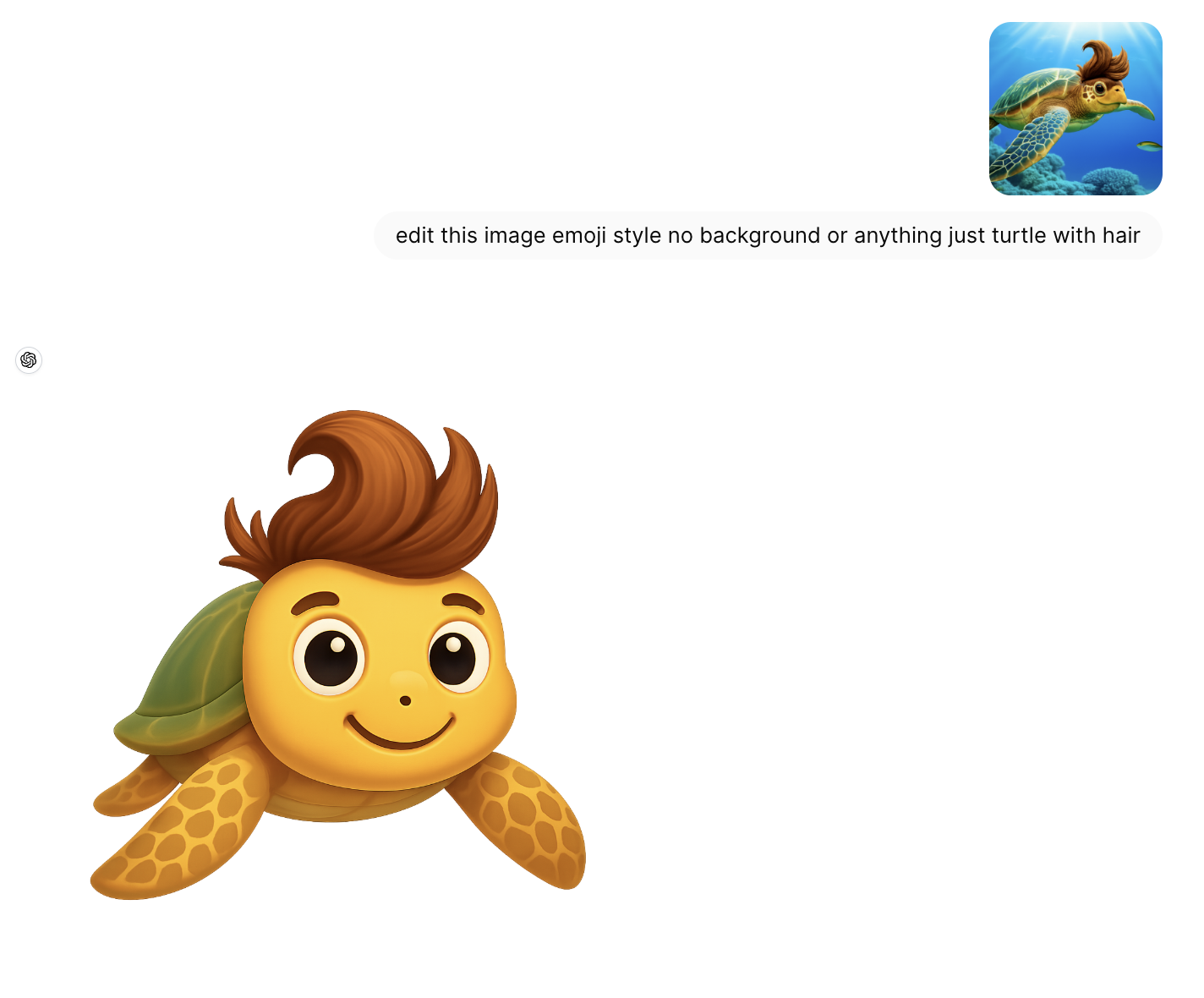
Example: prompt to emoji style and resulting transparent PNG
- Ask for a centered, emoji‑style illustration with no background
- Prefer a bold outline and simple shading for legibility at small sizes
- Export transparent PNG, square, ideally 128 × 128 px
Example prompt:\nCreate an emoji‑style version of this image. Center the subject, remove the background, add a simple outline, and export as a square transparent PNG (128x128). Keep file size under 128 KB.
✅ SUCCESS
Pro tip
Keep backgrounds transparent and subjects centered. Preview at small size to ensure edges are clean.
Step 2: Download the transparent PNG
Download the generated or edited image to your device. Confirm it is square, transparent, and under 128 KB. If needed, resize to 128 × 128 px and compress lightly to meet Slack guidance.

Download the emoji image as a transparent PNG
Step 3: Upload your custom emoji to Slack
On desktop: open the emoji picker, choose Add Emoji, upload the PNG, give it a short name, then Save. Your emoji will appear in the Custom section of the picker.
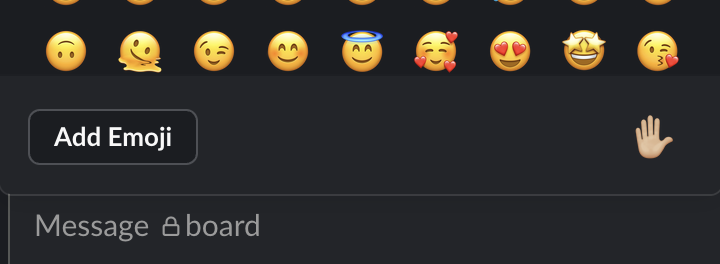
Slack Add Emoji button in the emoji picker
- Click the smiley icon in the message field to open the emoji menu
- Select Add Emoji
- Click Upload Image and select your PNG
- Enter a short name (for example, :team‑logo:)
- Click Save and test it in a message
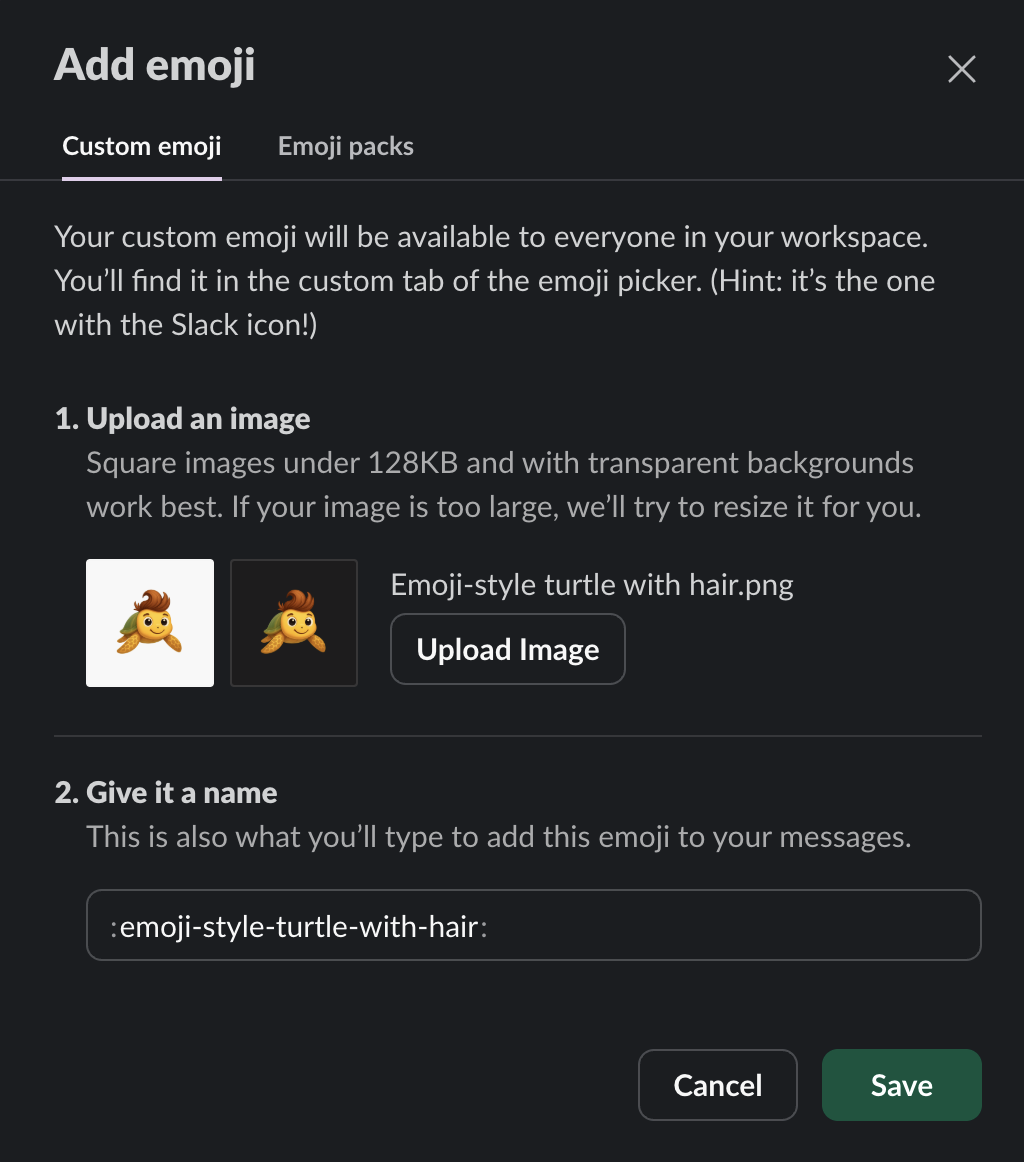
Your custom emoji visible and ready to use in Slack
ℹ️ INFO
Naming tip
Name your emoji clearly so teammates can find it by typing a colon and the name in the message box.
Troubleshooting and tips
- If edges look jagged, add a subtle outline and export again
- If the background appears white, ensure PNG transparency is enabled
- If the image is larger than 128 KB, resize to 128 × 128 px and compress
- Keep details simple so the emoji reads well at small sizes
Square images under 128 KB and with transparent backgrounds work best.
Related Articles

Ultimate Prompt Engineering Resources
Discover the top 10 prompt engineering resources from OpenAI, Anthropic, Google, and X.AI to master AI interactions and maximize model performance in 2025.

Vibe Prompting
Discover 7 advanced prompt engineering techniques from Cursor AI's leaked system prompt that transform how you interact with AI coding assistants. Learn to code like a pro with these insider strategies.