The ZeroTwo bot marketplace lists 89 ready-made bots in 9 categories as of November 28, 2026.1 Each one is a template for a ZeroTwo bot. Add one and you get your own copy, with its skills, its memories, and the routines it runs on a schedule. You can read all of that on the bot's public page before you add anything.
The timing matters for one group of readers. OpenAI's custom GPT retirement FAQ (opens in a new window) says custom GPTs are scheduled to retire on December 11, 2026.2 If your team keeps a recurring job in a custom GPT, such as the Monday account check, the interview prep, or the meeting recap, this post shows how to find a bot built for that job and what to check first.
Two limits sit beside that. Adding a bot needs a Pro, Ultra, or Business plan, and Free and Plus accounts can browse the marketplace but not add from it.3 The marketplace also does not convert a custom GPT. You choose a bot made for the job and give it your own list, calendar, or notes during setup.
Every bot's page states its job before you add it
A marketplace page is the bot's whole brief in public. The top gives its name, its categories, and a two-sentence description of the job. Below that sit four tabs. Memories holds the facts it already knows, Skills the playbooks it can run, Routines the jobs that run on their own, and Integrations the apps it can use.
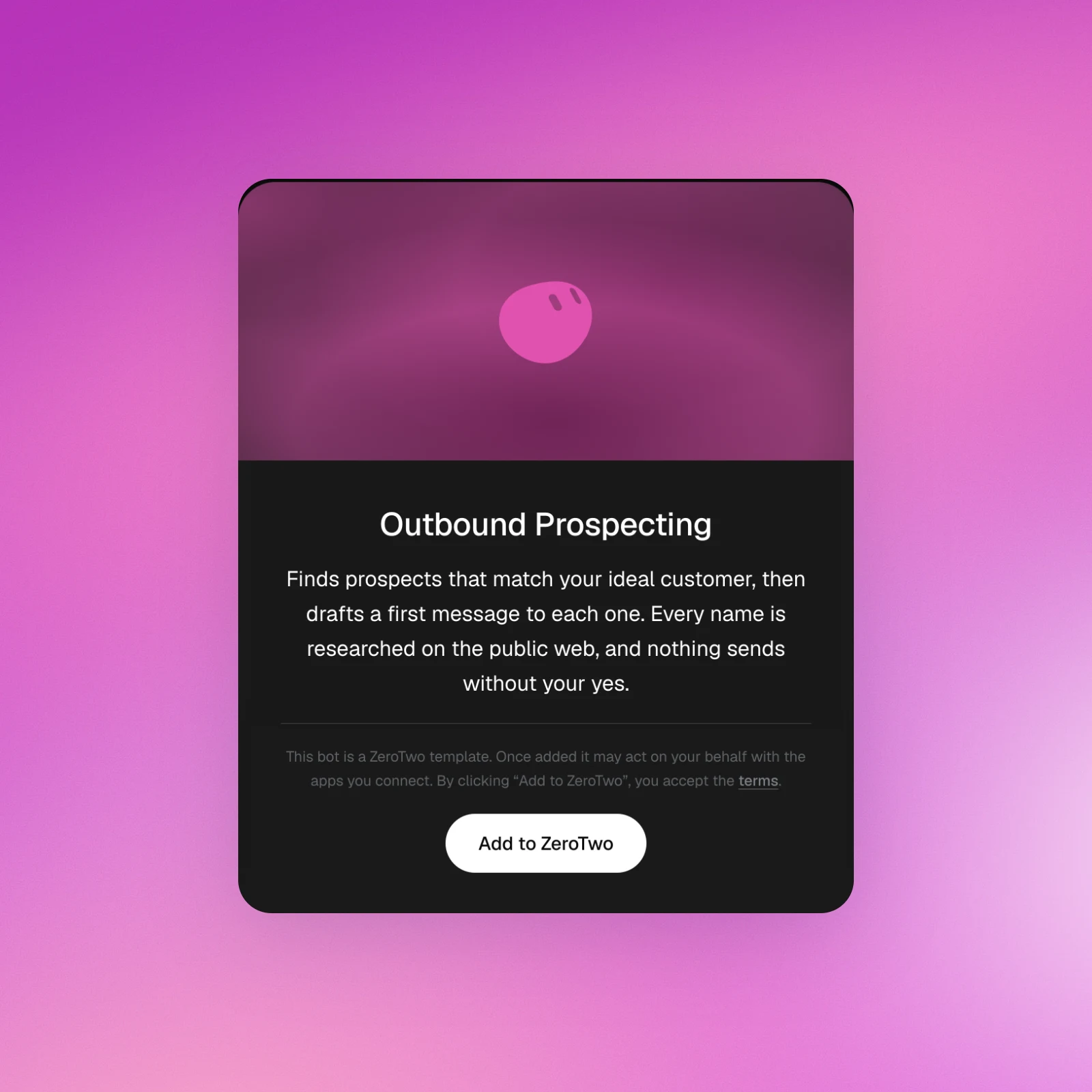
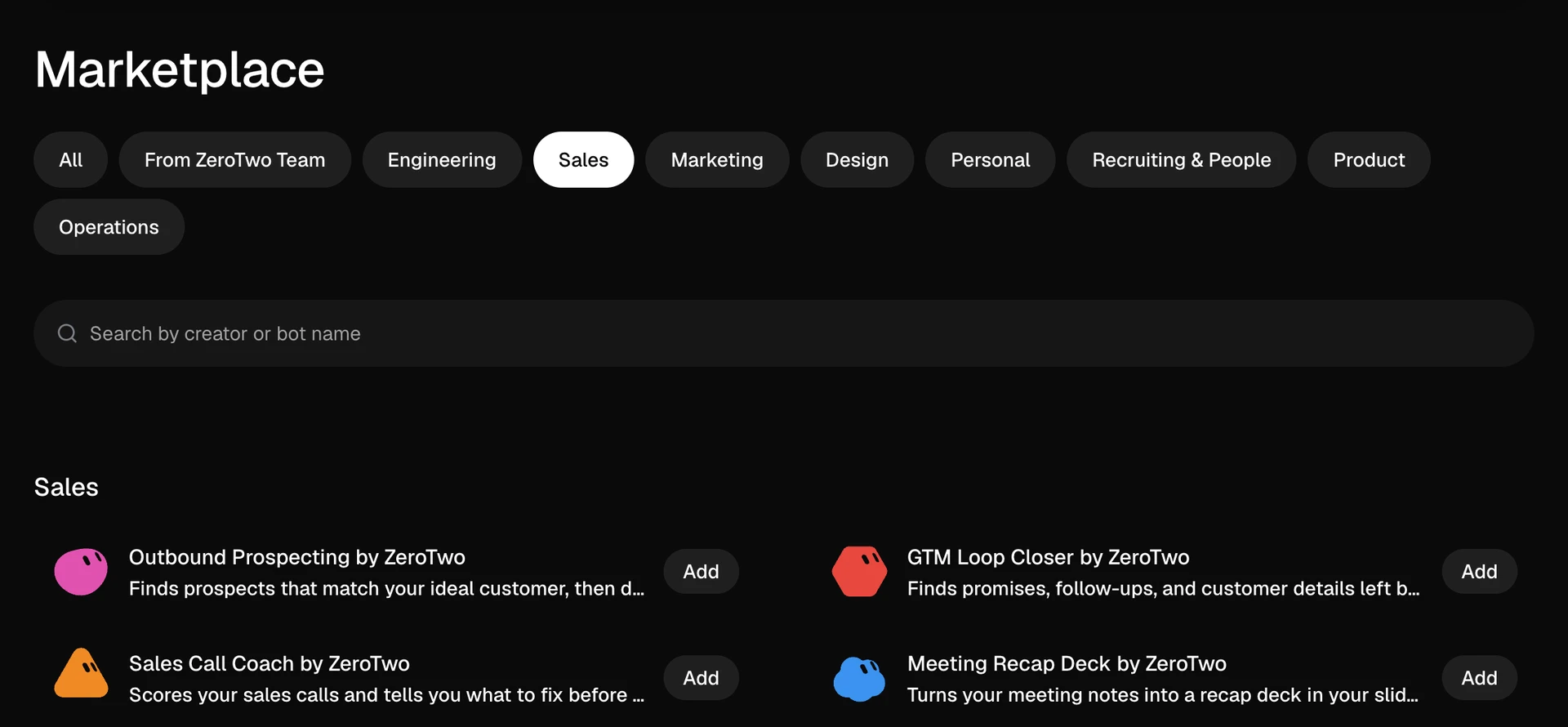
The nine categories run from Sales, Marketing, and Engineering to Personal. A bot can sit in more than one, and 54 of the 89 are in From ZeroTwo Team.1 The three screens below follow one bot, Outbound Prospecting, from the Sales category to its Routines tab to the card that adds it.4
Read the Routines tab first. It is the difference between a bot and a saved prompt, because it lists the work the bot does when you have not asked. Read the description's last clause second. Each of the seven bots below ends it with the thing it will not do.
Seven bots show the range of jobs
The seven bots below cover sales, marketing, hiring, and home. Every routine name and every limit in the table is quoted from the bot's own page.5
Bot | What it runs on a schedule | Its stated limit |
|---|---|---|
Weekday draft batch, Friday prospecting recap, Monday list top-up | "nothing sends without your yes" | |
Weekly account signals on Monday, weekday call prep, Friday open threads review | "never sends without you" | |
Daily lead triage on weekdays, weekly pipeline report on Monday | "never sends anything without you" | |
Daily hiring brief, evening interview prep, weekly pipeline review on Friday | "never emails a candidate without you" | |
Post-meeting recap draft, Friday recap roundup | "never invents a quote" | |
Weekday family digest, afternoon pickup check, Friday weekend preview | "never sends without you" | |
Daily mention monitor on weekdays | "never posts on your behalf" |
The first three split one sales motion by stage. Outbound Prospecting builds a target list and drafts the first message to each name. Account Research Desk writes the pre-call brief and the account plan for companies you already sell to. Lead Pipeline Desk scores inbound leads, merges duplicates, and flags what is stuck.
The other four take narrower jobs. Recruiting Coordinator schedules interview loops and preps interviewers. Meeting Recap Deck turns your notes into a recap deck in your slide template. Tradbot watches a personal inbox and calendar for school forms, bills, and RSVPs. Overheard watches Reddit, Hacker News, news sites, and X for mentions of your name or brand, and stays quiet on days with nothing to report.
Routines stay off until you turn them on
A template's schedule is a proposal, not a switch that is already on. Outbound Prospecting's page says its weekday drafts, Friday recap, and Monday list top-up stay off until you turn them on. Overheard's daily monitor is created paused, after it has asked you what to watch.5
The hours are yours as well. The routines in these templates run at the hour you pick, in the timezone the bot saved during setup. A Friday recap for an owner in Lisbon and one for an owner in Denver each arrive on Friday at the hour that owner picked.
Connected apps are optional for most of these bots. Lead Pipeline Desk works from a CRM export, a sheet, or a paste. Meeting Recap Deck works from notes you paste or upload. Each page's Integrations tab lists the apps the bot can use if you connect them, such as Slack for posting a brief you approved or Notion for keeping the list where your team reads.
Adding a bot takes one preview and one setup run
Every bot page has an Import Bot button, and the marketplace also opens from the new-chat palette and from an empty Bots home inside ZeroTwo.6 The add itself runs in four steps:
- Open the bot's page
Read its description and its Routines tab, then select Import Bot.
- Select Add to ZeroTwo
The card opens the desktop app, or the web app if you choose Add it on the web.
- Check the preview
ZeroTwo shows a preview dialog for the template before it creates anything.
- Let it run setup
The new bot runs its setup live, greets you, and installs its skills as your own along with its schedules.
The copy is yours from that point. Its skills are installed as your own, so you can edit them, and its questions during setup fill in what the template left blank, such as who you sell to or which roles are open.6 Template links also open in the iPhone app.
You can go the other way too. The Share button in a bot's info pane makes a link, and the link opens in ZeroTwo as a card with Create a copy.6 A bot you tuned for your own team's Monday report can become the template the next team starts from.
Availability
The marketplace and every bot page are public today at zerotwo.ai/bot/marketplace.1
Free and Plus: browse the marketplace, read any bot's page, and open the Add card. Adding the bot asks you to upgrade first.3 See plans
Pro and Ultra, with their 2× versions: add any of the 89 bots, edit its skills, and turn its routines on. Open the marketplace
Business: the same, and members can share a bot with their workspace.6 Open the marketplace
Where it runs: the web app, the desktop app, and the iPhone app for template links.
A template gives a bot its job, not your context. The target list, the calendar, and the rules it works from are still yours to hand over in the first week.
Footnotes
- Counted on November 28, 2026, from the catalogue the marketplace pages are built from: 89 bots, 9 categories, and 54 bots tagged From ZeroTwo Team. A bot can carry more than one category, so the category counts add up to more than 89. ↩
- OpenAI Help Center, "Custom GPT retirement and migration FAQ", read on November 28, 2026: "Custom GPTs are scheduled to retire on Dec 11, 2026." The same page gives February 28, 2027, for FedRAMP workspaces and Enterprise workspaces with an approved deferral. ↩
- Plan access was read from the source of the released ZeroTwo web app on November 28, 2026. Bots open on Pro, Ultra, their 2× versions, and Business. Other plans see an upgrade screen. ↩
- Captured on zerotwo.ai on November 28, 2026, from the public marketplace pages, signed out. The Sales category still is cropped to its first four bots. ↩
- Descriptions, routine names, and limits are quoted from each bot's template as published on its marketplace page, read on November 28, 2026. A template's text can change after this date. ↩
- From the ZeroTwo release notes for 1.1.46, published on October 24, 2026, at https://learn.zerotwo.ai/docs/changelog#release-1-1-46, and for 1.1.47 and 1.1.51 on the same page. ↩